

Skildring
Optimize all your images instantly and for free.
Cimo optimizes, resizes, and converts your images to WebP instantly as you upload them — right in your browser, before the files are ever added to your Media Library. From WordPress» point of view, it’s as if the image was already optimized before you uploaded it, keeping your site’s load speed fast without compromising quality.
Visit Cimo’s website to learn more about how Cimo does things.
- Unlimited usage – upload as many images as you want
- Instant optimization – virtually no waiting time
- No extra server load, bandwidth, or external image-processing services
Note: Cimo works in all modern browsers (Chrome, Firefox, Edge, Opera). In Safari, images will be optimized but will keep their original file format. WebP conversion is not supported in Safari.
Image Optimization options:
- WebP quality – set the quality level for WebP conversion (1-100), defaults at 80%
- Max image dimension – automatically resize images to a maximum dimension while preserving aspect ratio
- WordPress automatic scaling – disable WordPress’s built-in 2560px image scaling
- Thumbnail generation – disable all WordPress thumbnail generation to save disk space
- Individual thumbnail sizes – selectively enable/disable specific thumbnail sizes
- Preset configurations – one-click «Recommended» settings for optimal performance
- Statistics dashboard – view total storage saved, compression ratio, and optimization metrics
How to use
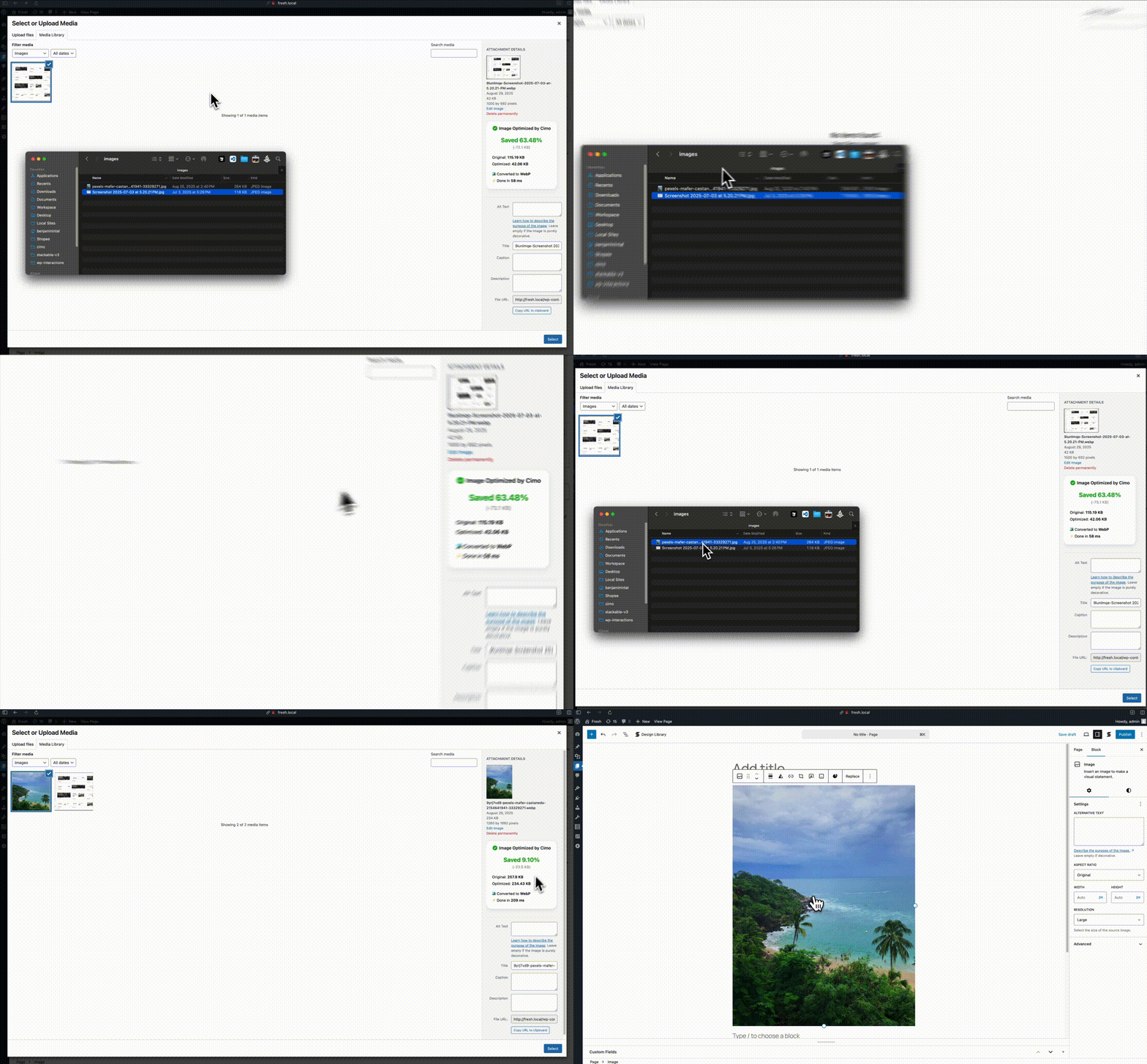
Just upload images to your Media Manager as you normally would, then Cimo instantly optimizes the images to the next-gen format WebP on your browser during the upload process, the resulting optimized file is the one saved to your WordPress site. It’s amazing!
Why use Cimo?
- Completely Free & Unlimited – no quotas, no limits, no paywalls. Optimize as many images as you want, forever.
- Instant, Browser-Based Processing – images are optimized as you upload, with zero server load and no external services.
- Privacy-First – your images never leave your device until they’re uploaded to WordPress.
- Future-Proof Format – automatic WebP conversion reduces file sizes by up to 80%, with full control over quality, dimensions, and thumbnail generation.
- Universal Compatibility – works seamlessly with the WordPress Block Editor, Elementor, Beaver Builder, and all major page builders.
- Developer Friendly – integrate your own upload UI with a small PHP helper and optional JavaScript API. See the developer integration guide.
Works with
- The native WordPress Block Editor / Gutenberg
- Should work with any plugin, but we made sure it works with these:
- Popular Page Builders
- Elementor
- Divi (partial: dropping files is not yet supported)
- Breakdance
- Bricks Builder
- Oxygen
- Beaver Builder
- WP Bakery
- Popular Block Editor Builders
- Stackable
- Spectra
- Kadence
- Greenshift
- GenerateBlocks
- Popular plugins
- WooCommerce
- Popular Page Builders
Since Cimo’s optimization works during the upload process, Cimo should be compatible with any plugin that uses images
For developers
Cimo can optimize files in the browser before your plugin or theme uploads them.
Your existing upload code can stay as it is.
On frontend pages, load Cimo with cimo_enqueue_assets(), then either:
- Register your file input wrapper with
cimo/select_files/allowed_locations - Register a drop zone with
cimo/drop_zone/allowed_locations - Or call
window.cimo.optimizeFiles()from your own JavaScript
See the developer integration guide for the full walkthrough.
What’s in Cimo Premium?
Free already optimizes images as you upload. Cimo Premium finishes the job on what’s already on your site:
- Bulk Optimization – optimize your existing images, videos and audio in your Media Library in one click, no server processing as well
- Optimize All Media Uploaded via Form Plugins – automatically optimize images, videos, and audio uploaded through popular form plugins (Gravity Forms, WPForms, Ninja Forms, Formidable, Fluent Forms, etc.)
- Smart Optimization – uses advanced algorithms to automatically select the optimal compression settings for each image, for the best results without manual tweaking.
- Video & Audio Optimization – automatically optimize and optionally downscale the resolution of videos and audio quality as you upload them
- Low Quality Image Placeholders (LQIP) – for native image blocks, display a subtle image placeholder while waiting for images to load, then fade the loaded image in.
- Stealth Mode – completely hides all Cimo branding and interface elements, while all optimization features continue to work seamlessly in the background.
Visit our website to learn more
Video & Audio optimization are also performed as you upload your files, even before the files are added to your Media Library.
Perfect For
- Website owners and content creators who upload large images without optimizing them first
- Developers and agencies building or managing sites that need fast, optimized images
- Anyone wanting automatic WebP conversion without a manual workflow
- Sites where server-side image processing isn’t available or desired
- Privacy-conscious users who don’t want images sent to third-party servers
Skjermbilete
Installasjon
- Upload the
cimofolder to the/wp-content/plugins/directory - Activate the plugin through the «Plugins» menu in WordPress
- That’s it! Cimo automatically optimizes images when you upload
Vanlege spm.
-
Can I use Cimo with my own plugin or theme upload form?
-
Yes. Load Cimo on that page with
cimo_enqueue_assets(), then tell Cimo about your file input or drop zone, or callwindow.cimo.optimizeFiles()from your JavaScript.
See the developer integration guide. -
What makes Cimo different from other image optimizers?
-
Unlike server-side plugins, Cimo processes everything in your browser. No external APIs, no server processing, no waiting – just instant optimization as you upload.
-
How will I know if it worked?
-
When you upload an image into your Media Manager (let’s say a .jpg), you’ll notice that after uploading, it will be a .webp image! You will also find some additional information in the Media Manager about your uploaded image.
-
Does Cimo work in all browsers?
-
Cimo works in all modern browsers including Chrome, Firefox, Edge, and Opera. In Safari, images will be optimized but will keep their original file format. WebP conversion is not supported in Safari.«`
-
Does Cimo really have no limits?
-
Yes! Unlike other plugins that charge per image or have monthly quotas, Cimo’s image optimization and compression is completely unlimited and free forever.
-
Is my data sent to external servers?
-
No! Cimo processes everything locally in your browser. Your media assets never leave your device until they’re uploaded to your WordPress site, nor do they go to another server for processing.
-
How does Cimo’s client-side processing work?
-
Our browsers right now are quite powerful and already have the capabilities for converting images to different formats.
At the very core, the conversion is done via a clever use of JavaScript’s Canvas API to process your images in the browser right before they’re uploaded to WordPress.
This means faster uploads, no server load, and complete privacy.
-
What image formats does Cimo support?
-
Currently WebP conversion is fully supported.
-
Does Cimo work with existing images?
-
Cimo optimizes images during the upload process. For existing images, we have bulk optimization available in Cimo Premium. Learn more on our pricing page.
-
Does Cimo convert video and audio files?
-
Yes Cimo can convert video and audio files, but that’s in our premium version, check out website for more information on it.
-
Will Cimo slow down my uploads?
-
Actually, it speeds them up! Since images are compressed before upload, they transfer faster and take up less storage space.
-
How do I access the settings page?
-
Go to Settings > Cimo in your WordPress admin. There you can configure options such as WebP quality, set maximum image dimensions, control thumbnail generation, and view optimization statistics.
-
What are the recommended settings?
-
Click the «Recommended» button in the settings page to apply optimal settings:
– WebP Quality: 80% (best balance of quality and file size)
– Max Image Dimension: 1920px (perfect for modern web)
– Thumbnail Generation: Disabled (saves disk space)These settings work great for most websites and provide excellent performance.
-
Can I see how much storage I’ve saved?
-
Yes! The settings page includes a statistics dashboard showing:
– Total storage saved
– Percentage reduction
– Number of media files optimized
– Original vs optimized file sizes
Omtalar


Bidragsytarar og utviklarar
“Cimo – Free Instant Image Optimizer & WebP Converter” is open source software. The following people have contributed to this plugin.
Contributors

“Cimo – Free Instant Image Optimizer & WebP Converter” er omsett til 1 språk. Takk til omsetjarane for bidraga deira.
Omset “Cimo – Free Instant Image Optimizer & WebP Converter” til ditt eige språk.
Interested in development?
Les kjeldekoden, sjekk SVN-lageret eller abonner på utviklingsloggen med RSS.
Endringslogg
1.5.0
- New: Developer API so other plugins can optimize files before upload #67
- New: Option to skip optimizing WebP images on upload #77
- New: Convert GIFs to animated WebP and optimize animated WebP #78
1.4.2
- New: Free settings page shows real bulk optimization progress #66
- New: Media Library notice when video optimization is skipped (premium) #48 #49
- Fixed: Improved error message for bulk optimization on non-HTTPS sites #54
- Fixed: Smart Optimization for HEIC images (premium) #60
- Fixed: SVG sanitizer loading issue (premium) #55
1.4.1
- Fixed: PHP error notice because of invalid big_image_size_threshold usage
1.4.0
- New: Smart Optimization (premium) – get even smaller image file sizes when uploading images #35
- New: Video & audio can now be optimized in Bulk Optimization #37
- New: Toggle optimization option – toggle Cimo’s optimizer on/off when needed #36
- Fixed: When uploading a video using a webkit-based browser, the progress bar would get stuck to ready #47
- Fixed: When WordPress Automatic Image Scaling is ON, the file size in metadata does not match with the final #43
1.3.1
- Fixed: Optimization metadata may not be attached if uploading images with the same filename #40
- Fixed: Added view all stats link
- Fixed: Added upgrade links
1.3.0
- New: Bulk optimization without server processing (premium)
- New: Frontend file uploads can now be optimized (premium)
- New: Integrations to popular WordPress Form plugins (premium)
- New: Added stealth mode (premium)
- New: Added settings link in plugins page entry
- New: Added support for dropping images in WooCommerce descriptions
- Fixed: Cimo settings page improvements
- Fixed: Improvements on stats metabox styling
1.2.3
- New: Added SVG Optimization (premium)
- New: Added HEIC image format support (premium)
- Fixed: Dropping files stopped working in some instances #32
1.2.2
- Fixed: Uploading an image via Media > Add Media File doesn’t show stats #4
- Fixed: Dragging multiple images in quick succession sometimes doesn’t optimize the image #3
- Fixed: LQIP doesn’t work correctly when the image has a srcset attribute #11
- Fixed: Closing the upload button on the block toolbar stops uploading of media #9
- Fixed: Uploading images with the same name in the same session doesn’t add the metadata correctly #8
1.2.1
- New: If the resulting optimized image is bigger than the original image, the image is now skipped and the original image is kept.
- Fixed: Fixed license activation issue
1.2.0
- New: Video Optimization (premium)
- New: Audio Optimization (premium)
- New: Low Quality Image Placeholders (premium)
- New: Added rating notice at the right time
- Fixed: Now intercepts media uploads when performed inside the block editor iframe
1.1.2
- Fixed: When uploading images, the original image is also uplaoded.
1.1.1
- Fixed: When uploading images using Safari, images will just upload as they normally would.
1.1.0
- New: Statistics dashboard showing total storage saved, compression ratio, and media optimized
- New: Admin settings page under Settings > Cimo
- New: WebP quality control slider (1-100%) for custom compression levels
- New: Maximum image dimension setting to automatically resize large uploads
- New: WordPress automatic scaling control (disable the 2560px scaling threshold)
- New: Granular thumbnail generation control – disable all or select specific thumbnail sizes
- New: «Recommended» preset for one-click optimal settings
1.0.5
- Fixed: Metadata saving fails if WP is installed in a subdirectory
1.0.4
- New: Added partial support for Divi
1.0.3
- Fixed: File prefixes are no longer used during the optimization process. The original file names are now retained.
1.0.2
- Fixed: Dragging images on a blank editor or on top of other blocks now converts images
- Fixed: Dragging images into the block editor now converts images
- Fixed: Clicking on the Upload button on an image block directly now converts images
- Fixed: Uploading images from Media > Library and in grid view now converts images
- Fixed: Minor console JS error in some admin pages
- Change: Added admin notice to let user know what to expect
1.0.1
- Fixed: Minor string translation tweaks
1.0.0
Initial release of Cimo – bringing free, unlimited image optimization and compression to WordPress.
- Initial release
- Client-side image optimization
- WebP conversion support
- Unlimited compression
- Privacy-first approach